
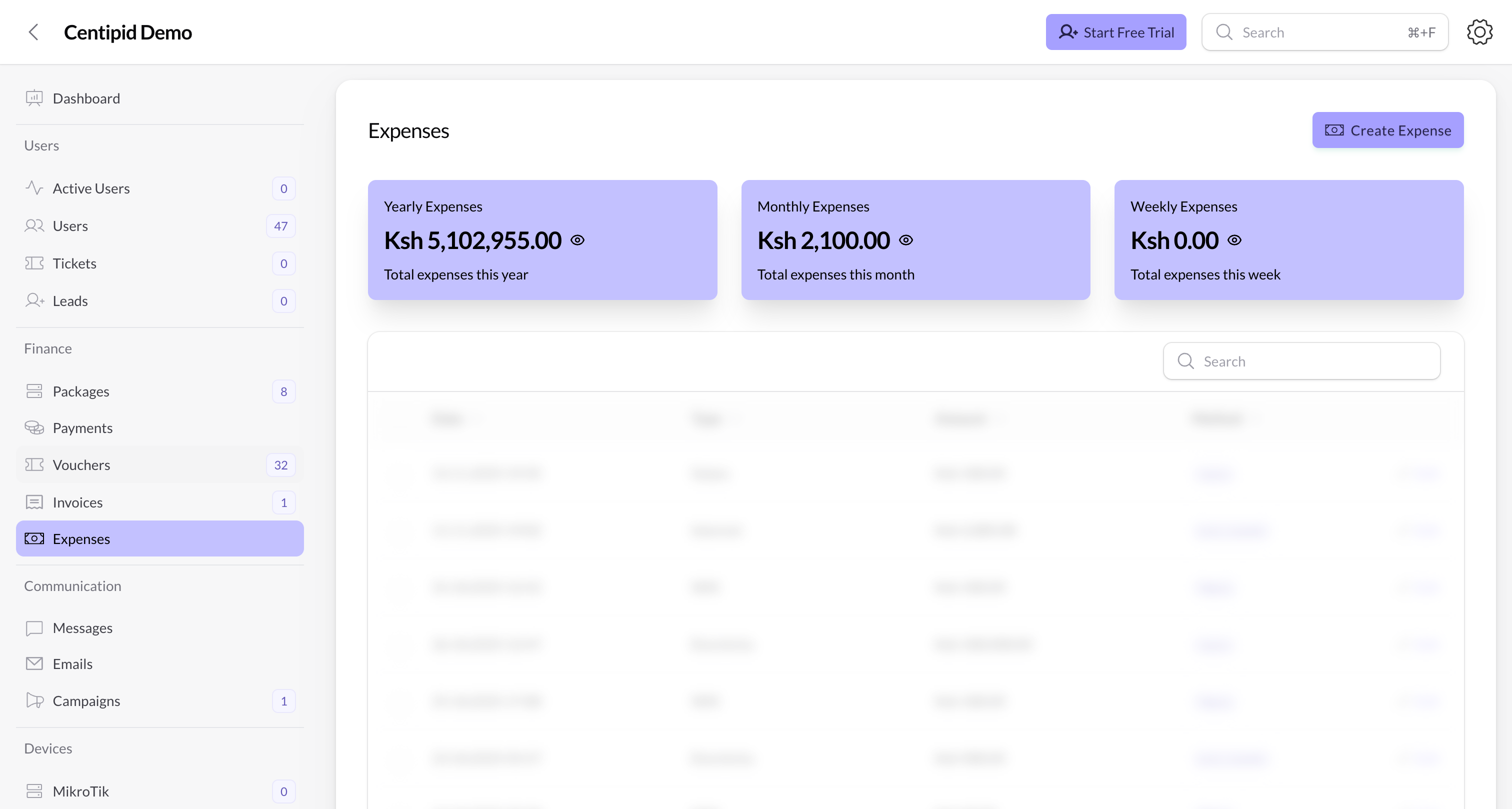
What you see on the page
- Stats overview – the cards at the top show Yearly, Monthly, and Weekly Expenses using your currency symbol. The numbers update automatically whenever you add or edit an expense.
- Table – columns list the Date, Type, Amount, and Method. Use the search box to find items by type (for example “Electricity”) or the amount. Sorting by Date or Amount helps when reconciling statements.
- Actions – each row has an Edit icon (pencil). Bulk delete is only available to admins or users with the
expenses.deletepermission, so most operators simply edit records instead of removing them.
Add an expense
- Go to Finance → Expenses and click Create Expense.
- Fill in each field:
- Type – choose from predefined categories (SMS, Airtime, Internet, Electricity, System Payment, Salary, Other).
- Amount – enter the total cost. Centipid automatically prefixes the input with your account currency symbol.
- Date – defaults to the current time; adjust it to match the actual purchase date.
- Payment Method – pick how you paid: Cash, M-Pesa, Cheque, Bank Transfer, or Other.
- Receipt – upload a photo or PDF proof (optional but recommended for audits).
- Description – add context such as invoice numbers, vendor names, or line items.
- Click Create. The record appears immediately and the stats cards refresh.
Centipid automatically records its subscription fees under System Payment, so you only need to enter other company expenses manually.
Edit or delete expenses
- Select any row and click the pencil icon to update type, amount, or attachments.
- Bulk delete is restricted to admins/authorized finance roles; select the checkboxes beside the rows and use Bulk Actions → Delete. Centipid disables delete for other roles to prevent accidental data loss.
- There is no inline “mark as reimbursed” state—if you need that workflow, add it to the Description or export the data to your accounting tool.
Export & supporting documentation
- Use your browser’s print/export (Ctrl/Cmd + P) when you need a quick PDF of the table filtered by date.
- Receipts uploaded through the form are stored with the expense. When auditors request proof, open the record and download the attachment from the right sidebar (Files list).
- Combine expenses with the Payments report to see profit per period: Payments show cash inflow, Expenses capture outflow.