
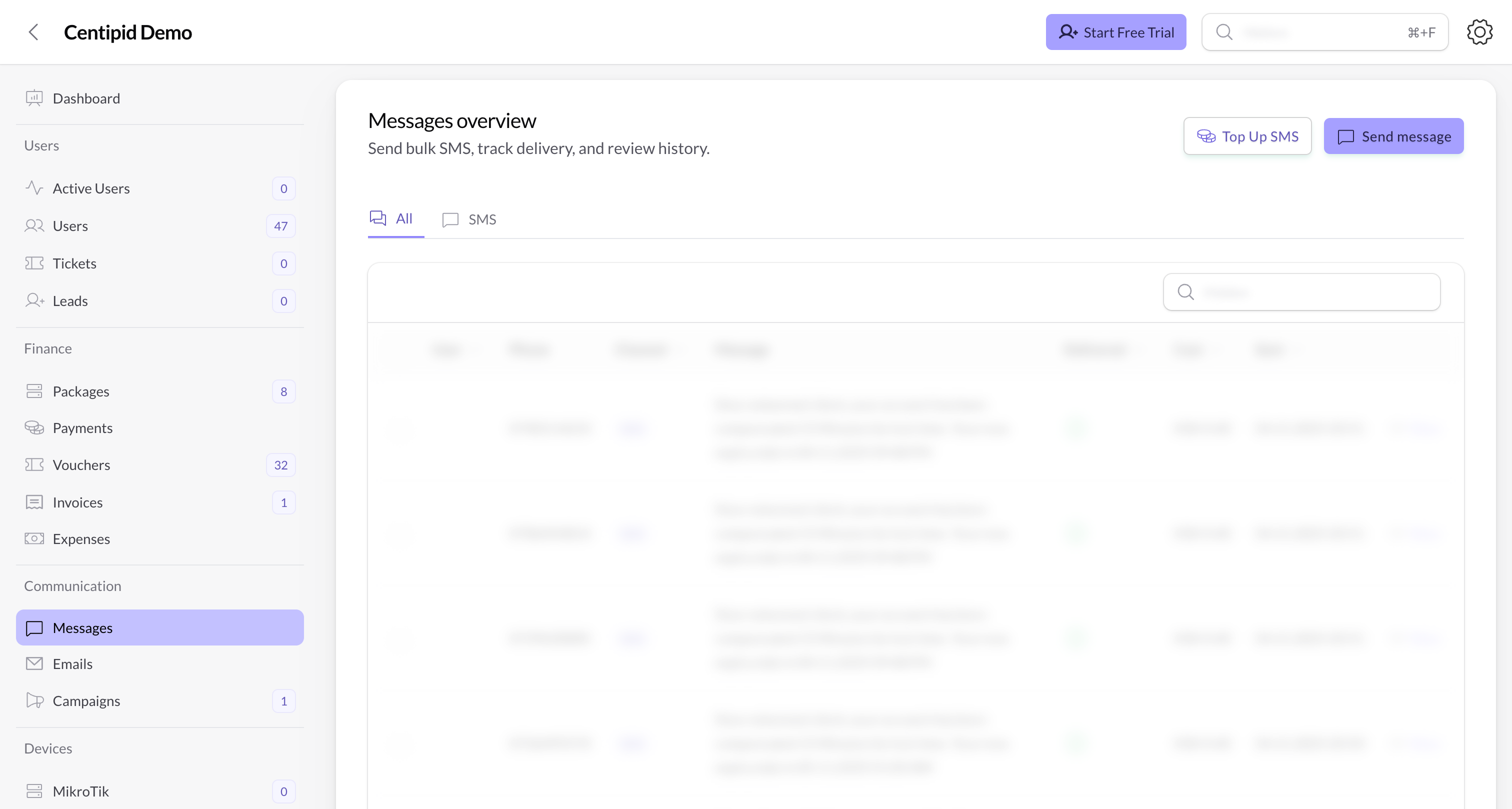
Create a message
- Click Send message.
- Choose Channel: SMS (default) or WhatsApp (if enabled).
- Choose Recipients:
- All users – Everyone with a valid phone.
- Groups / Segments – Select segments (e.g., Online Users, Offline Users, Subscribed Users, Hotspot Users, PPPoE Users, Expired Users, Paused Users, Active Subscribers, Inactive Subscribers).
- Mikrotiks – Target users behind specific MikroTik devices.
- Specific users – Pick individual users by name/phone (only those with valid phone numbers).
- Enter the Message (SMS length applies; WhatsApp supports richer text).
- Click Send message.
Personalization variables
Include these placeholders in the message; Centipid replaces them at send time:@first_name, @last_name, @email, @phone, @package_name, @expiry_at, @account_number, @paybill, @till_number, @password, @username.
Example:Hi @first_name, your @package_name expires on @expiry_at. Renew via paybill @paybill using account @account_number.
Delivery notes
- SMS uses your configured SMS Gateway (see SMS Gateways).
- WhatsApp uses your configured WhatsApp Gateway (see WhatsApp Gateways).
- Delivery status appears in the Messages table; failed items can be reviewed per row.