
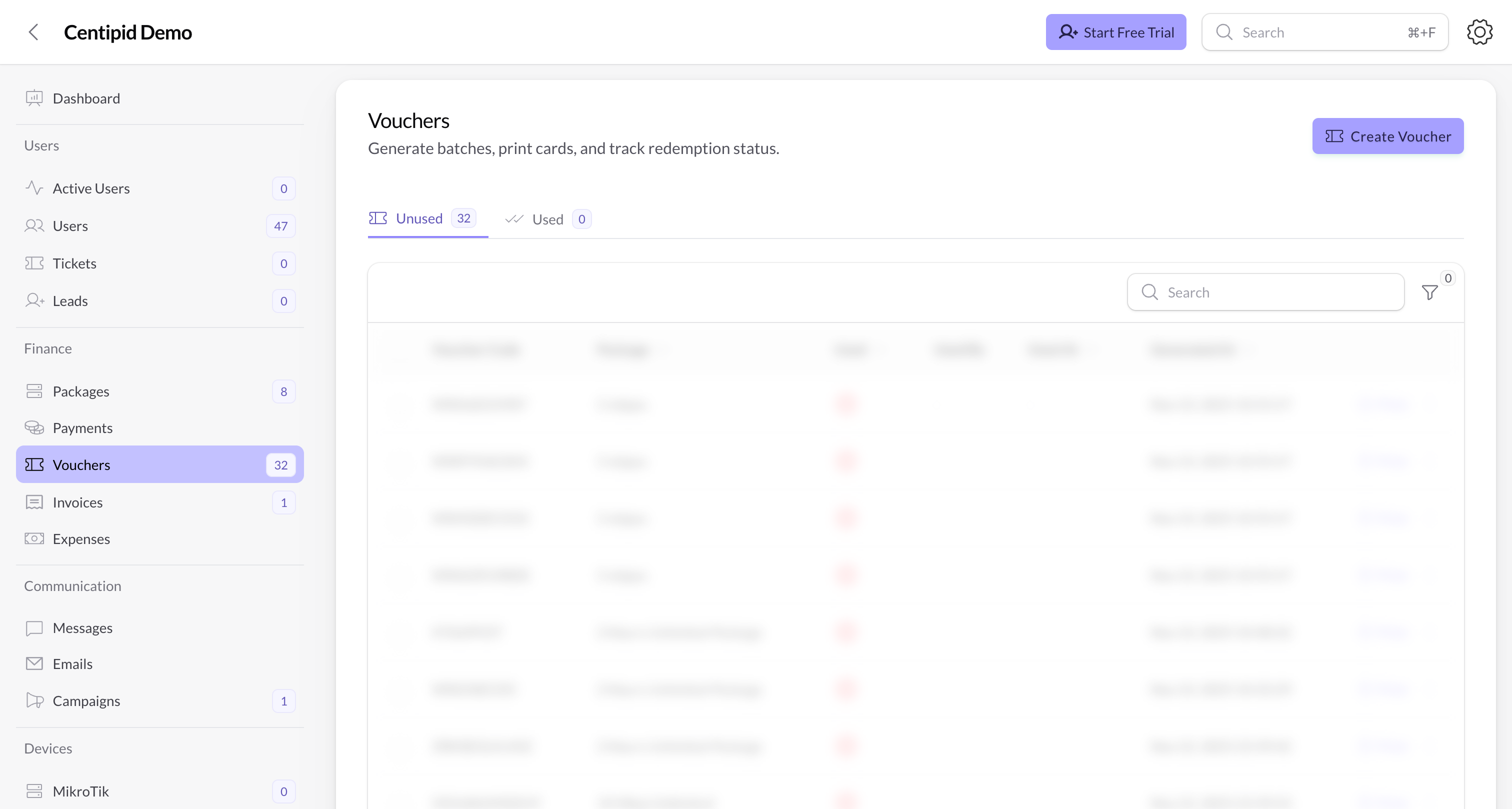
Generate vouchers
- In the left navigation, open Finance → Vouchers and click Create Voucher.
- Choose the Hotspot package the voucher should activate (for example Basic Hotspot – 2 Hours).
- Set the Number of vouchers to generate in this batch.
- Pick the Voucher code length (6–12 characters). Longer codes are harder to guess.
- (Optional) Add a short Voucher prefix of up to two characters to identify campaigns, e.g.
V6. - Toggle Send SMS Notification if you want Centipid to text each voucher to a customer immediately after generation.
- Click Create. The vouchers appear in the table with their status (Unused / Used). You can print them or export to share with agents.
Keep a small inventory of unused vouchers so field teams can sell them without waiting for dashboard access.
Track unused vs used
- Use the tabs above the table to switch between Unused and Used vouchers.
- Columns show who used the voucher, when it was redeemed, and which package it activated.
- The action menu lets you print or deactivate a voucher if it was exposed before sale.
Print voucher cards
- Stay on Finance → Vouchers and filter to the batch you need.
- To print a single code, click the printer icon at the end of that row. Choose Black and white or Colored, then download the PDF card. The colored option uses your ISP brand color.
- To print many at once, select the rows (or use the checkbox at the top), open Bulk Actions → Print Vouchers, then choose the print color and layout before downloading the combined PDF.
- Use 50 per page for standard A4 voucher sheets with five columns and ten rows. Use Current compact layout if you prefer the older dense layout.
- Open the PDF in your browser’s print dialog and choose the paper size that matches your stock.
- Cut the cards and hand them to resellers or place them at the hotspot location.
Choosing black and white or colored
- Black and white is best for thermal printers, photocopying, and low-cost monochrome printing.
- Colored adds your ISP brand color to the voucher border and voucher code, which makes cards easier to recognize when printed in color.
- The voucher code, package name, duration, and ISP label remain visible in both modes.
How customers redeem vouchers
- In the captive portal login modal, customers pick the Voucher tab.
- They enter either the voucher code or their phone number (if you enabled that option).
- After clicking Use voucher, Centipid validates the entry, activates the hotspot package tied to it, and moves the voucher to the Used tab.
- If the voucher is expired or already used, the portal shows an error so the customer can try another code.