
Open the Payments page
- Sign in and expand the Finance section in the left navigation.
- Select Payments to open the payments table.
- Use the tabs above the table (Checked payments / Unchecked payments) to see which payments still need review.
You can record a payment from this page or directly from a user/invoice record. The steps below describe the Payments page modal.
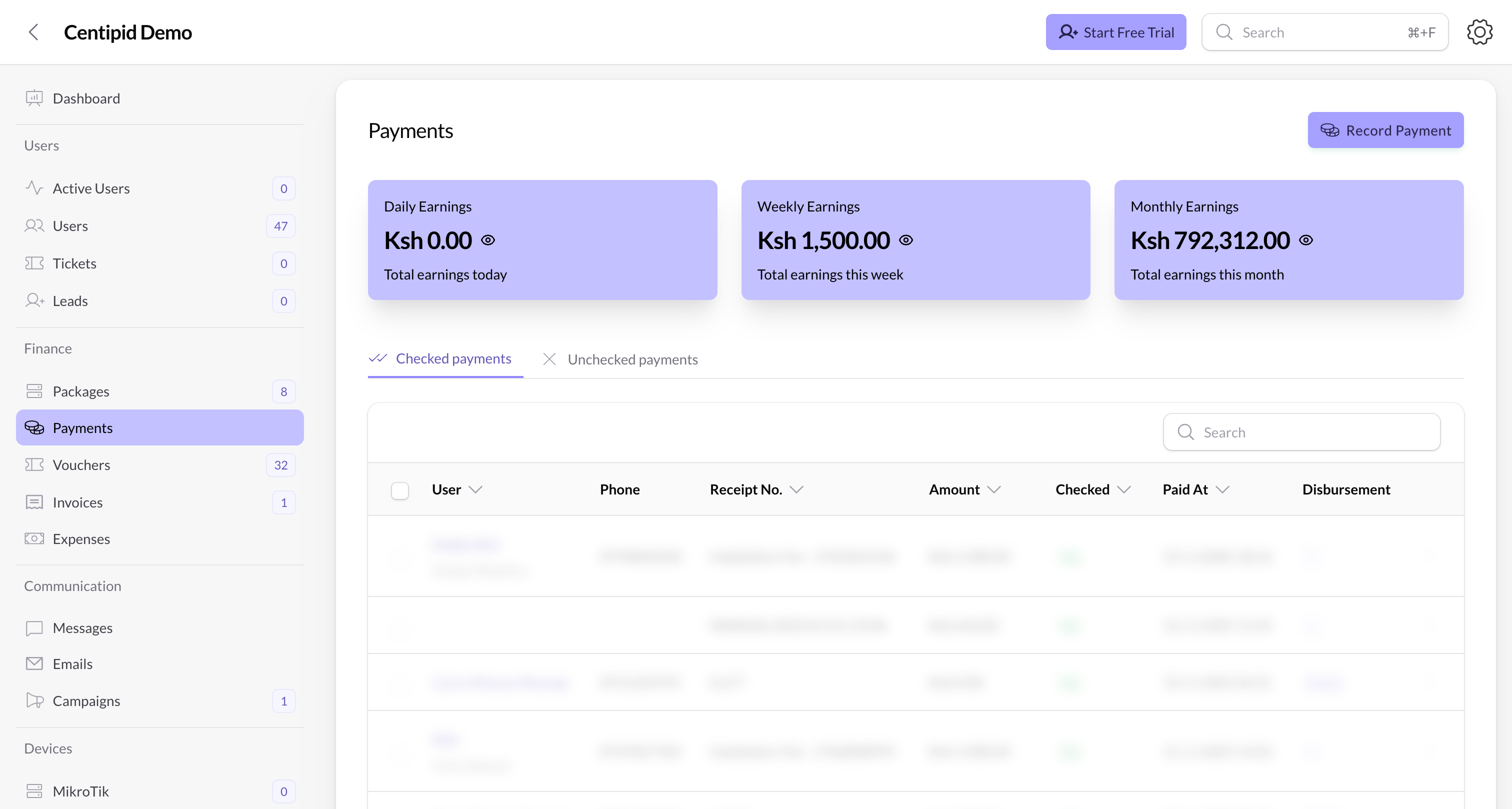
Understand the dashboard
- The green Daily / Weekly / Monthly earnings cards summarize the total value of all recorded payments in those periods and refresh automatically as soon as you add or edit a payment.
- Each card displays the account currency, so the totals remain accurate even if your team handles multi-country operations.
- Use the eye icon on each card to hide the value during live demos or when sharing your screen.
Record a payment
- Click Record Payment.
- In the User dropdown, search for the customer who paid. (Add their phone number to the profile first so Centipid can send confirmations.)
- Enter the Receipt Number exactly as it appears on the proof of payment. Receipts must be unique.
- Type the Amount your customer paid. Centipid prefixes the field with your account’s currency symbol to avoid mistakes.
- Choose the Payment Method (Cash, M-Pesa, or Bank). Keep the naming consistent so reports stay clean.
- Set Has this payment been checked?:
- Select No when you want Centipid to verify the payment, queue the assignment, and move it to the Unchecked tab until the system finishes checking. This is the safest option for PPPoE because it also triggers scheduling so the client receives internet once the funds clear.
- Select Yes only after you have already confirmed the payment manually and want to credit the user immediately.
- Press Create. Centipid saves the record, generates a receipt, and triggers the usual notifications/SMS for that user.
After saving
- New payments appear at the top of the table with their receipt number, amount, method, and whether they are checked.
- Use the Unchecked payments tab to chase anything waiting on confirmation; switch to Checked payments to view completed items.
- Use the search bar or column sorting to find transactions by receipt number, phone number, name, or amount. Combine search with the tabs to narrow down exactly what you need.
- Open the action menu on each row to View Payment, View Receipt, edit details, or disburse funds (where available). The payment view shows the captured fields (amount, method, status, phone, etc.) while the receipt page lets you download a PDF copy for your records.
- The toolbar includes bulk tools such as Export Payments, which downloads a CSV of the selected records for reconciliation or sharing with finance teams.
- If you set the toggle to No, the system keeps monitoring the transaction until it can safely promote it to Checked and, for PPPoE users, automatically provision service.
- The Disbursement column indicates whether Centipid has forwarded funds to your payout method when automated disbursements are available. Badges show Pending, Success, Retrying, or Direct (for instant bank/till payouts), so you instantly know if money has left Centipid.
Troubleshooting tips
- Receipt already used – reuse of a receipt number is blocked; double‑check the number or delete the original if it was a mistake.
- Missing phone number – Centipid warns you if the selected user profile lacks a phone number; fill it in so payment SMS and automation can run.
- Payment stuck in Unchecked – confirm the bank or M-Pesa transfer, then edit the payment and switch the toggle to Yes once you’re confident the funds cleared. This state can also happen if the amount you recorded does not match the customer’s package price. Double-check the package price, update the payment amount if needed, and save again so Centipid can activate the service.
- Customer notifications – recording a payment (manual or automatic) triggers the standard SMS/email templates if they are enabled. Make sure each user profile has the correct phone number and email so confirmations reach them immediately.
- Automatic verification timeline – when you leave Has this payment been checked? on No, Centipid polls the gateway/bank reference every few minutes. Once it finds a matching amount/receipt combination the system flips the payment to Yes and activates the subscriber. Keep the values accurate so the background job can match it quickly.