
Open the page
- Click the gear icon → System Settings → System Users, or use the avatar menu → System users (visible to admins only).
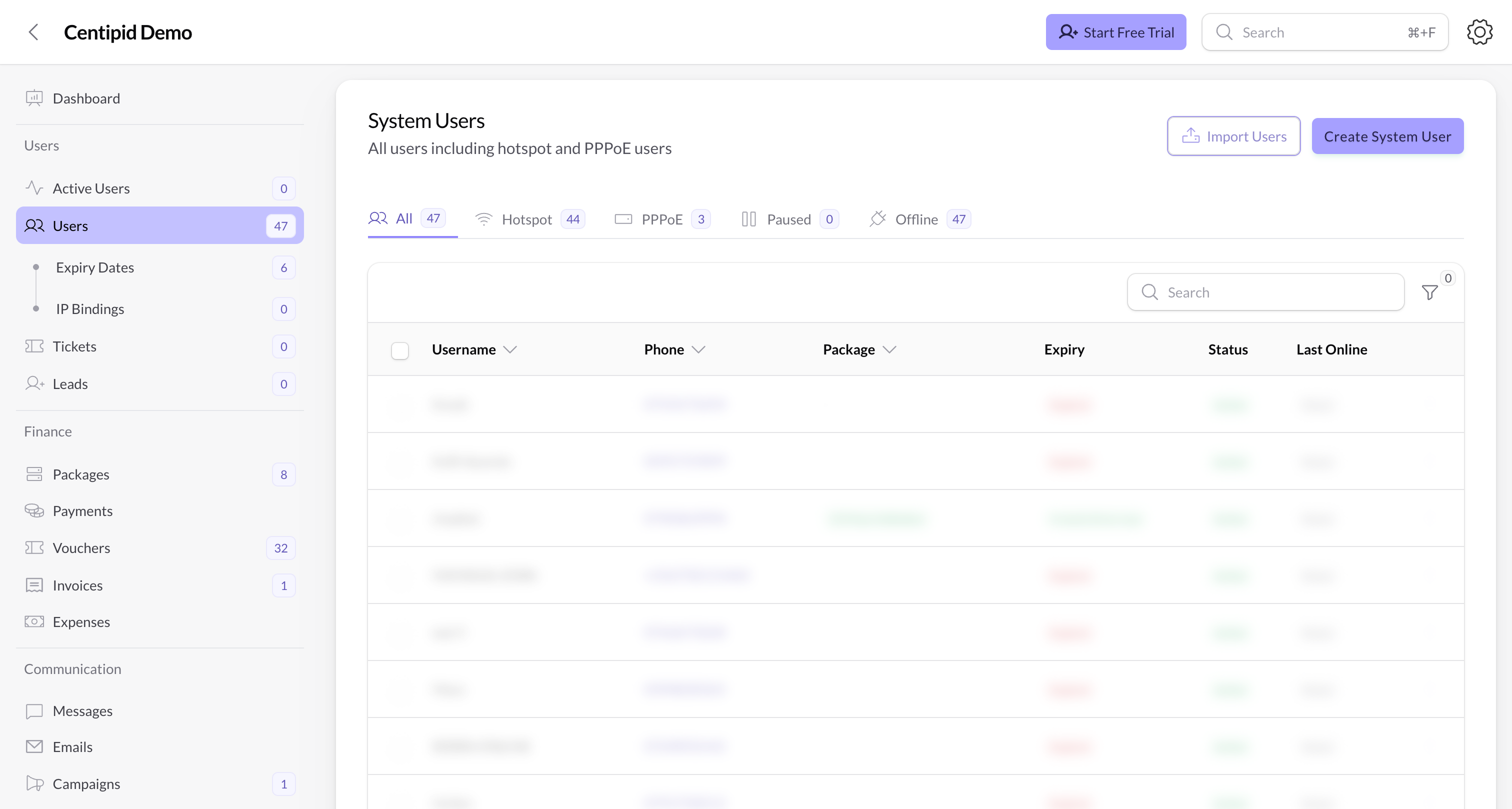
- The page loads with tabs for All Users, Administrators, and Technical Support so you can focus on a subset of staff.
- The table shows each user’s username, phone, email, role, internet profile (if any), and last login time.
Create a new staff account
- Press Create User.
- Fill in the person’s first and last name, username (letters/numbers only), phone, and email.
- Select the Role (Admin or Support). Admins automatically receive every permission; support users rely on the custom permissions you pick later.
- Set a strong password (Centipid enforces 12+ characters with mixed case, numbers, and symbols).
- Optionally tick Send email with password reset link—Centipid will email them a reset link plus a welcome message.
- Choose which packages (profiles) they are allowed to see, if applicable. The Internet Profile dropdown is more than a label—it ties the staff account to a specific bandwidth profile so that when they connect through PPPoE or Hotspot (for testing or field work) Centipid enforces the same speed ceilings you set for that profile.
- Scroll to Permissions (details below) and tick only the modules the user needs.
- Save. Centipid stores the user, emails them (if requested), and logs the action for auditing.
Editing and actions
- View user – open the profile to review login history, API tokens, and activity widgets.
- Edit Permissions – update the checkbox list at any time. Admins cannot have their permissions edited (they always have full access).
- Change password – either force a password update for someone else or change your own (admins must enter the current password when changing their own). Centipid emails the affected user when a password changes.
- API Tokens – staff can generate, regenerate, or revoke their API tokens directly from the actions menu. Tokens show once; copy them immediately.
- Delete – remove a system user (cannot delete yourself).
Permission groups
Think of permissions as plain-English switches for each area of the app. When you edit a system user you’ll see sections such as Users, Payments, or Vouchers with simple checkboxes:- View list – lets them open the table/list for that feature.
- View details – lets them open a single record.
- Create – allows new records.
- Edit – allows changes to existing records.
- Delete – removes records (only shown when it’s safe to delete that type of data).
| Feature | What it controls | Typical access |
|---|---|---|
| Active Users | Live session list plus disconnect buttons. | Support teams (view only). |
| Campaigns | Marketing campaigns that display on captive portals. | Marketing or admins. |
| Emails | Mass email log and templates. | Marketing or admins. |
| Equipment | Inventory of routers / radios you’ve loaned out. | Field ops, warehouse, admins. |
| Expenses | Finance → Expenses ledger. | Finance team. |
| Invoices | Finance → Invoices page (create, mark as paid, download). | Finance/support. |
| Leads | Prospect tracker and “convert to client” button. | Sales/support. |
| MikroTik (NAS) | Router list, diagnostics, remote Winbox tools. | Network engineers. |
| Packages | Package definitions and quick templates. | Product/finance leads. |
| Payments | Payment table (record cash/bank receipts). | Finance/support (view + create). |
| Referrals | Referral partners dashboard. | Business development. |
| Expiry Dates (Schedulers) | Manual expiry timers/grace periods. | Support/billing. |
| SMS | SMS gateway, templates, and log. | Comms/marketing. |
| Tickets | Support ticket queue. | Support team. |
| Users | Subscriber management (profiles, packages, credentials). | Support/admins. |
| Vouchers | Voucher batches, exports, printing. | Retail/support. |
users, tickets, payments, and active_users, while finance might only need payments, invoices, expenses, and packages.
Tips
- Use descriptive usernames (e.g.,
nairobi-support-1) so audit logs are easy to read. - Revoke API tokens whenever a staff member leaves, then delete their system account to remove dashboard access entirely.
- Schedule a monthly audit: export the System Users table, verify that each person still works with you, and prune unused accounts.
- Combine permissions with the Audit Logs (Administration group) to see exactly who changed which records.