
Turn on invoices
- Open System Settings (gear icon) → PPPoE.
- In Invoice Settings, toggle Enable Invoices and click Save changes.
- (Optional) Adjust PPPoE Reminder Notification Times to control the automated reminder schedule that piggybacks on invoices.
Create an invoice
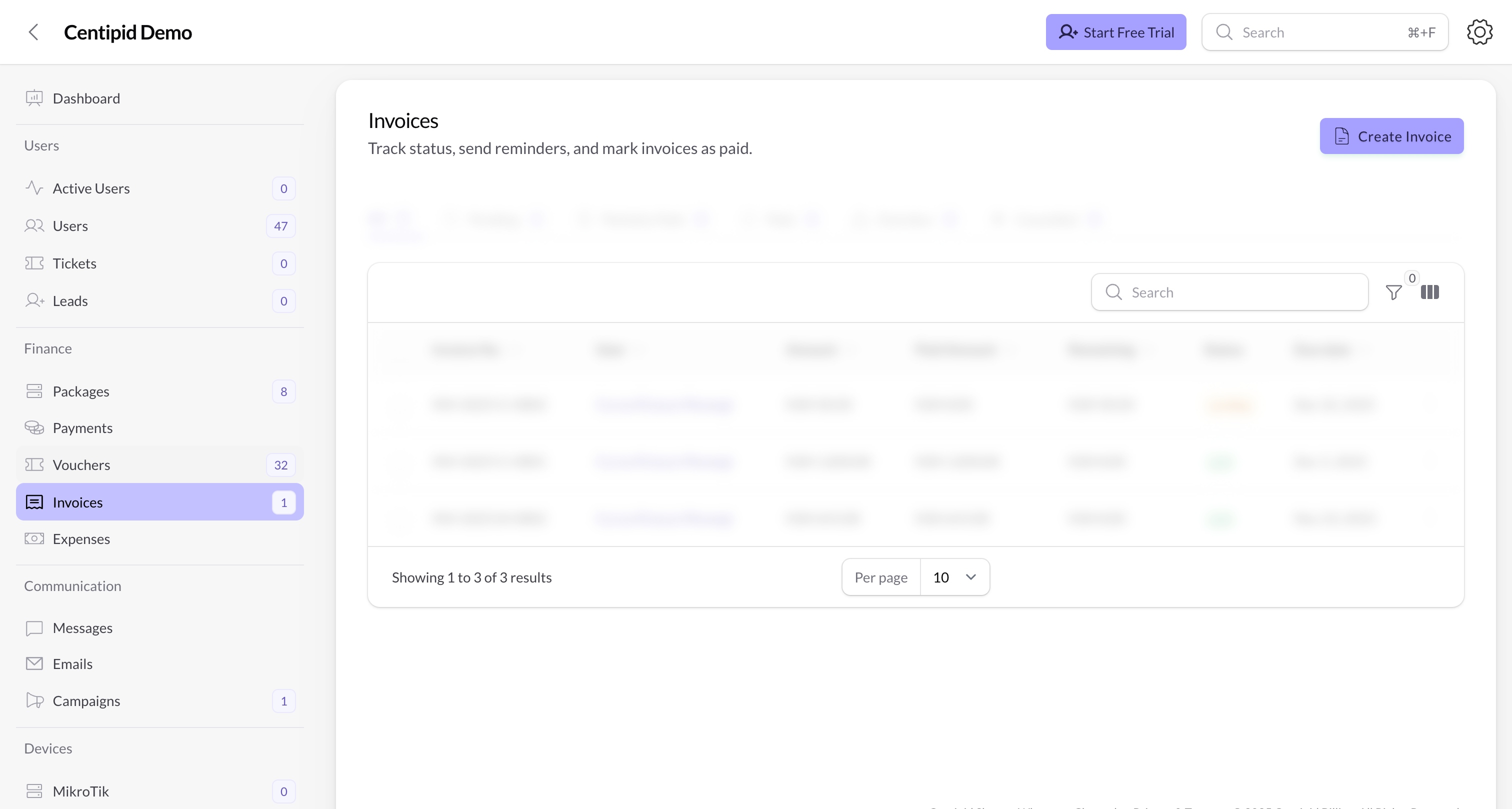
- Go to Finance → Invoices and click Create Invoice.
- Pick the User. Centipid pulls the subscriber list; when a user has an active package, the form auto-fills a renewal line item, price, and due date.
- Choose the Status:
Pending– invoice issued, no payment yet.Partially Paid– when you already collected part of the amount.Paid– use when you’re logging a payment at creation time.Overdue– for missed deadlines; customers see it in their portal.
- If you mark it
PaidorPartially Paid, provide the Payment Method, amount, date, and receipt so Centipid can match payments. - Add invoice items. The service picker includes common tasks (Installation, Maintenance, Static IP, etc.) and any subscription tied to the chosen user. Quantity × unit price auto-computes the line total and the overall invoice amount.
- Click Create. The invoice enters the table and appears in the customer portal if they are PPPoE.
Manage invoices
- Tabs (All, Pending, Partially Paid, Paid, Overdue, Cancelled) filter the table; counts update as you work.
- Filters let you isolate invoices by status or due date range; the search box supports invoice number, user, and amount.
- Actions per invoice:
- Add Payment – log a partial payment; Centipid creates a Payment record and adjusts the status automatically.
- Mark as Paid – clears the remaining amount, creates a final payment entry, and moves the invoice to Paid.
- Mark as Cancelled – stops reminders, useful when a subscriber churns or you reissued the invoice. Bulk actions let you cancel multiple at once.
- Send Invoice – email the PDF to the subscriber or a custom address (with CC and optional message). Works only if the user profile has an email or you type one in.
- Preview / Download PDF – open the hosted invoice preview or download the PDF for archiving.
- The badges (Paid Amount, Remaining, Due Date) update in real-time so you always know what is outstanding.
Customer experience
- PPPoE subscribers receive reminder emails/SMSs based on the schedule set in PPPoE Reminder Notification Times.
- When you email an invoice using Send Invoice, the customer gets a branded email with the PDF attached and any custom message you added.
- Once invoices are Paid or Cancelled they drop from the “Pending” widget, so teams focus on real delinquent accounts.
Tips
- Use prefixes in the invoice number (configured in Settings → General) to organize by branch or reseller.
- Encourage staff to log every receipt number. It creates a complete audit trail, ties back to Payments, and reduces disputes.
- For recurring subscribers, duplicate an invoice from the View Invoice page or let the auto-populated line items handle renewals—less typing, fewer mistakes.
- Export PDFs in bulk before audits so you have an offline archive if internet access is unreliable.