
Open the Tickets page
- Click Users → Tickets.
- Tabs at the top switch between Open Tickets and Closed Tickets; Centipid remembers your last tab selection.
- The navigation badge shows how many open tickets still need attention.
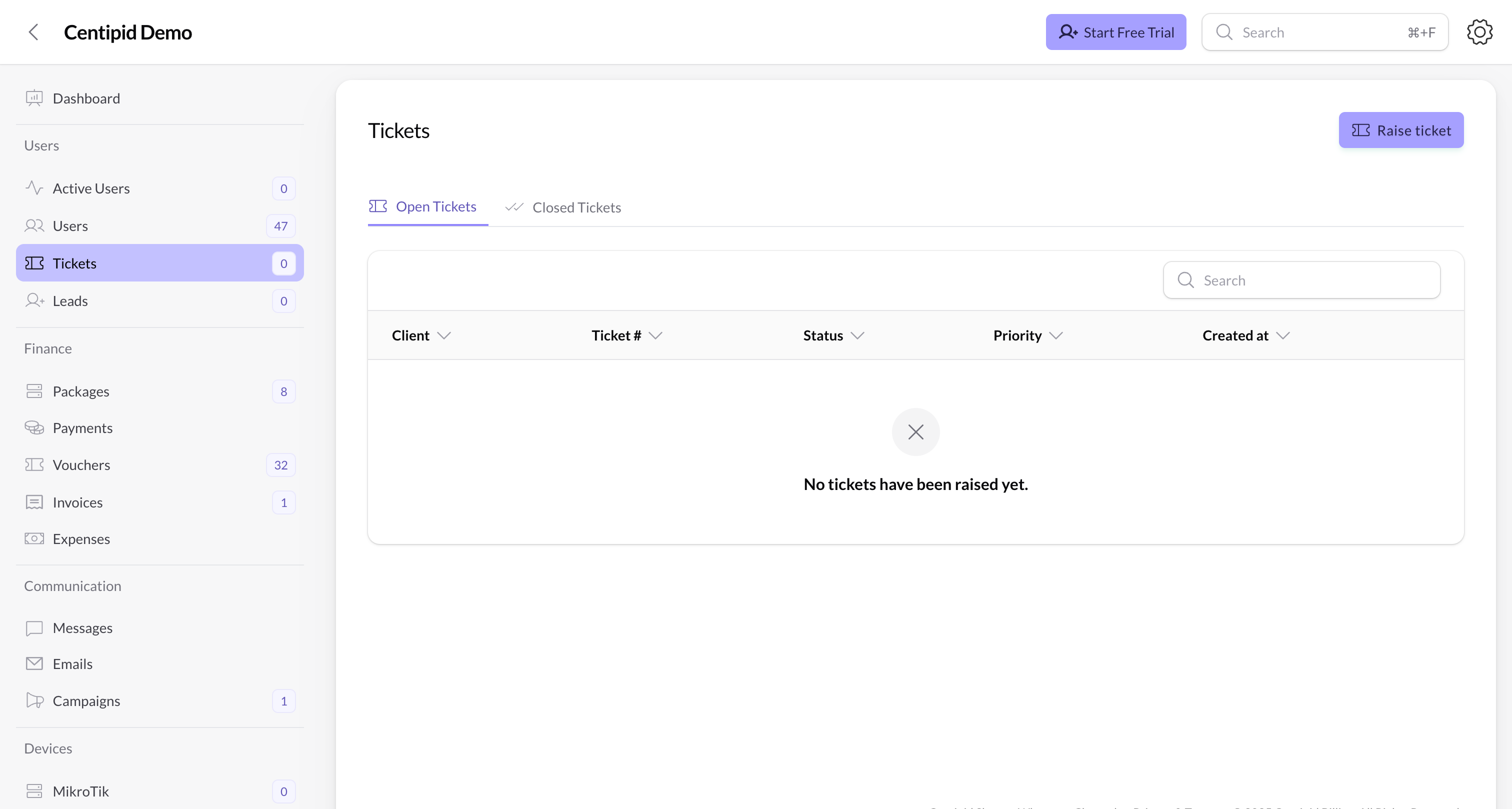
Raise a ticket
- Press Raise ticket. The slide-over keeps you on the table.
- Pick the Client (Centipid auto-populates the next ticket number).
- Set Priority (Low, Medium, High) and Status (Open/Closed). Most teams leave new tickets as Open.
- Describe the issue in the Description textarea.
- Toggle Notify user if you want Centipid to send an SMS acknowledging the ticket. You can edit the suggested SMS template before submitting.
- Click Raise ticket. The issue appears in the table and, if you enabled notifications, the customer receives the SMS via your configured SMS gateway.
Table columns
- Client – links directly to the subscriber profile.
- Ticket # – sequential identifier prefixed with
TICKET-. - Status – Open (red) or Closed (green).
- Priority – colored badge showing urgency.
- Created at – timestamp (local timezone).
Resolve or update tickets
- Resolve – available on open tickets. It opens a slide-over asking how you fixed the issue plus an optional SMS confirmation to the customer. Centipid automatically flips the status to Closed and sends the SMS if you left the checkbox on.
- Edit – tweak the description, priority, or assigned user.
- Delete – remove a ticket entirely (requires confirmation).
Best practices
- Include router names, signal levels, or payment references within the description so field teams can act without re-calling the client.
- Use the Open tab during daily stand-ups to ensure nothing is aging without an update.
- Combine tickets with Leads: when a prospect raises multiple issues before activation, convert the lead into a full user straight from the Leads table once you resolve their blockers.