
Open the Packages page
- Sign in to your Centipid dashboard.
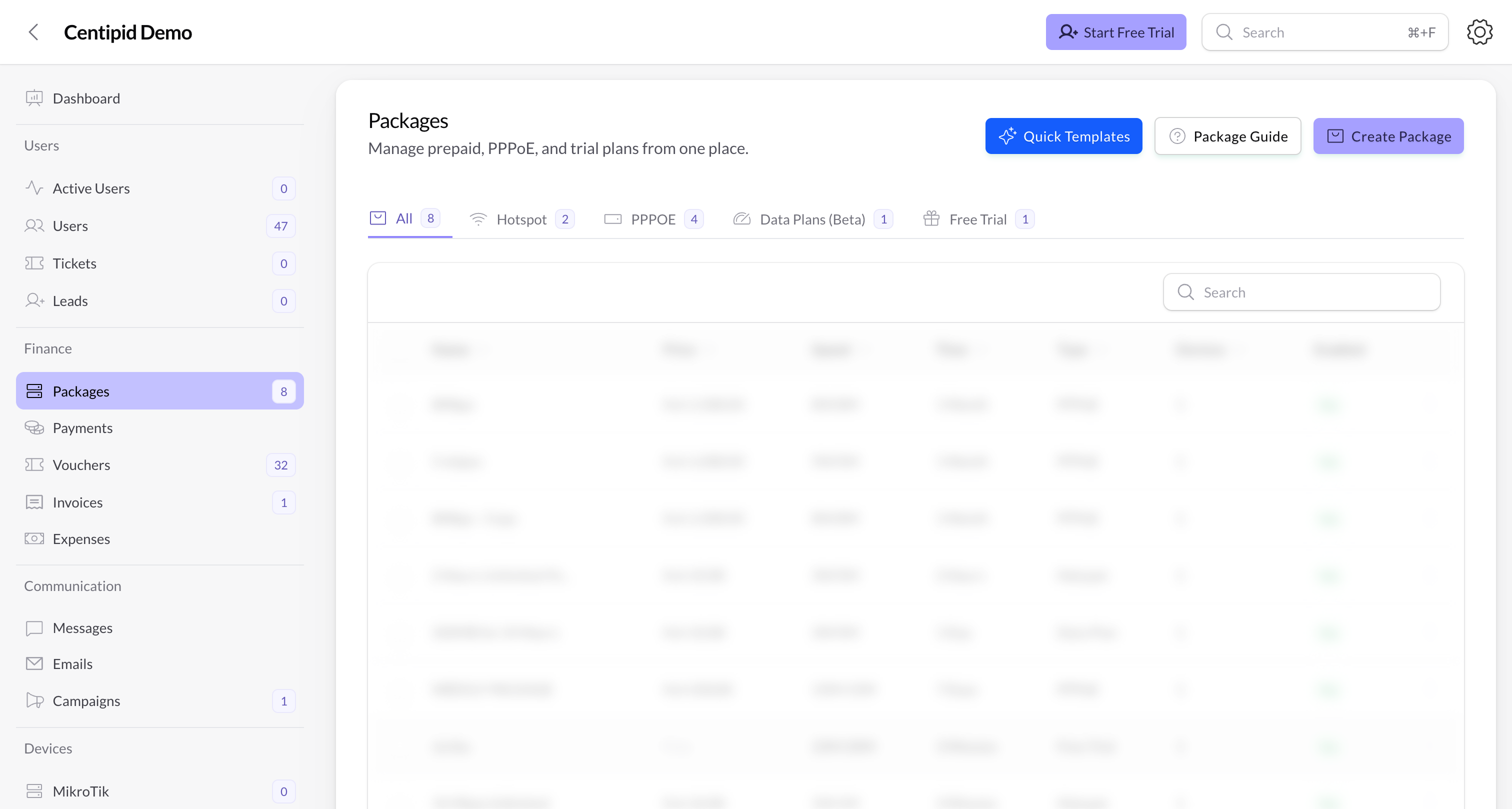
- From the left navigation, choose Packages (under the Finance section).
- You will land on the packages table, which lists every package, its price, type (Hotspot, PPPoE, Bundle, Trial), and current status.
Choose a package type
- Hotspot – best for Wi‑Fi zones or captive portals. Customers typically buy short durations (hours or days) and pay via STK push or vouchers.
- PPPoE – ideal for home/office broadband plans. These usually last weeks or months and rely on online payments or manual activation.
- Bundles / Trials – promotional plans with smaller allocations or zero price to let customers test your service.
Tip: Decide on the pricing strategy first (pay‑as‑you‑go, fixed term, or unlimited) so you can match it to the correct package type.
Create a package
Start a new package
Click Create Package.
Pick a Package Type (Hotspot, PPPoE, Bundle, Trial). Centipid loads the relevant fields for that type automatically.
Pick a Package Type (Hotspot, PPPoE, Bundle, Trial). Centipid loads the relevant fields for that type automatically.
Set the essentials
Fill in the core billing details:
- Package name – what customers will see on the portal.
- Duration – for example
2 hours,7 days, or30 days. - Price – enter the amount customers pay; it should align with the currency Centipid set when you registered.
- Devices allowed – limit how many simultaneous logins a customer gets.
Configure usage limits
Decide how strict each plan should be:
- Speed limits – set download/upload caps using a number followed by a letter, for example
5M upload / 5M download. - Data caps – use total data or daily caps for bundles.
Advanced options (optional)
Use these to fine‑tune the experience:
- Burst – temporarily boost speed for premium users. Set burst limit, threshold, and time.
- Schedules – make the package available only during certain hours (for example Night Owl plans).
Manage existing packages
- Use the search bar or filters on the Packages page to find plans by name, type, or status.
- Click any package to edit pricing, limits, or descriptions.
- Duplicate high‑performing packages with Quick Templates to launch variations faster.