
Open the profile
- Go to Users → Users.
- Click the View user action (eye icon) on the customer you want to inspect.
- The profile opens with the subscriber’s name, online/offline badge, current package, and expiry/pause state pinned at the top.
Tabs & widgets
General Information
- Pulls the full summary card with contact details, package info, login credentials, account number, address, and connected devices.
- Use this tab to verify what the customer sees in their portal or to copy their Wi-Fi/PPPoE credentials.
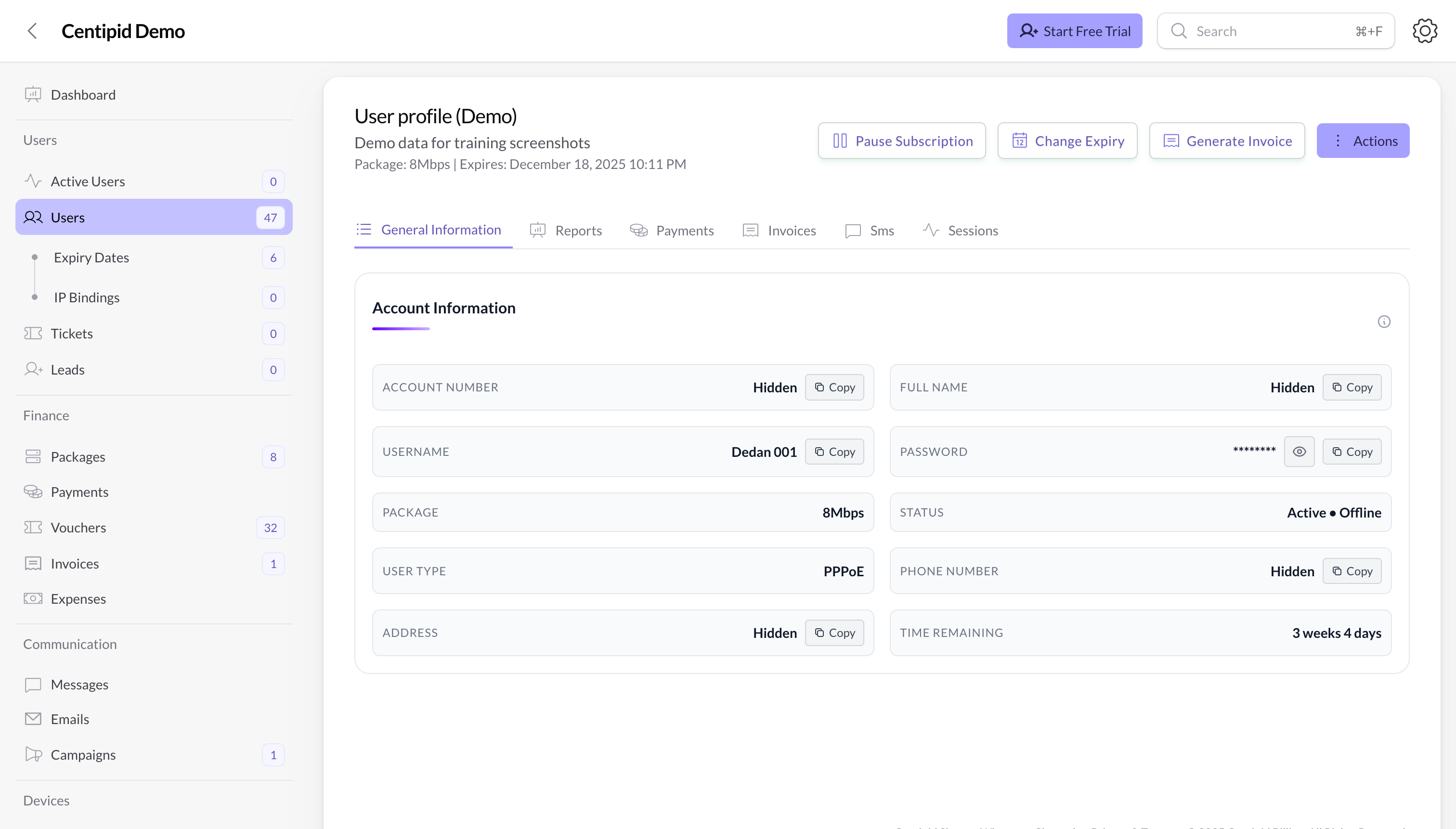
Reports
- PPPoE User Statistics – highlights bandwidth usage since the current billing window start.
- Customer Value Analysis – shows total revenue collected from this customer, average revenue per month (ARPU), their longest on-time payment streak, and alerts if they are trending downward.
- User Traffic Statistics, Internet Usage Trend, Peak Usage Hours – charts showing daily throughput, trends, and busiest hours.
- User Payment Statistics – invoices vs. payments so you can see if they pay late.
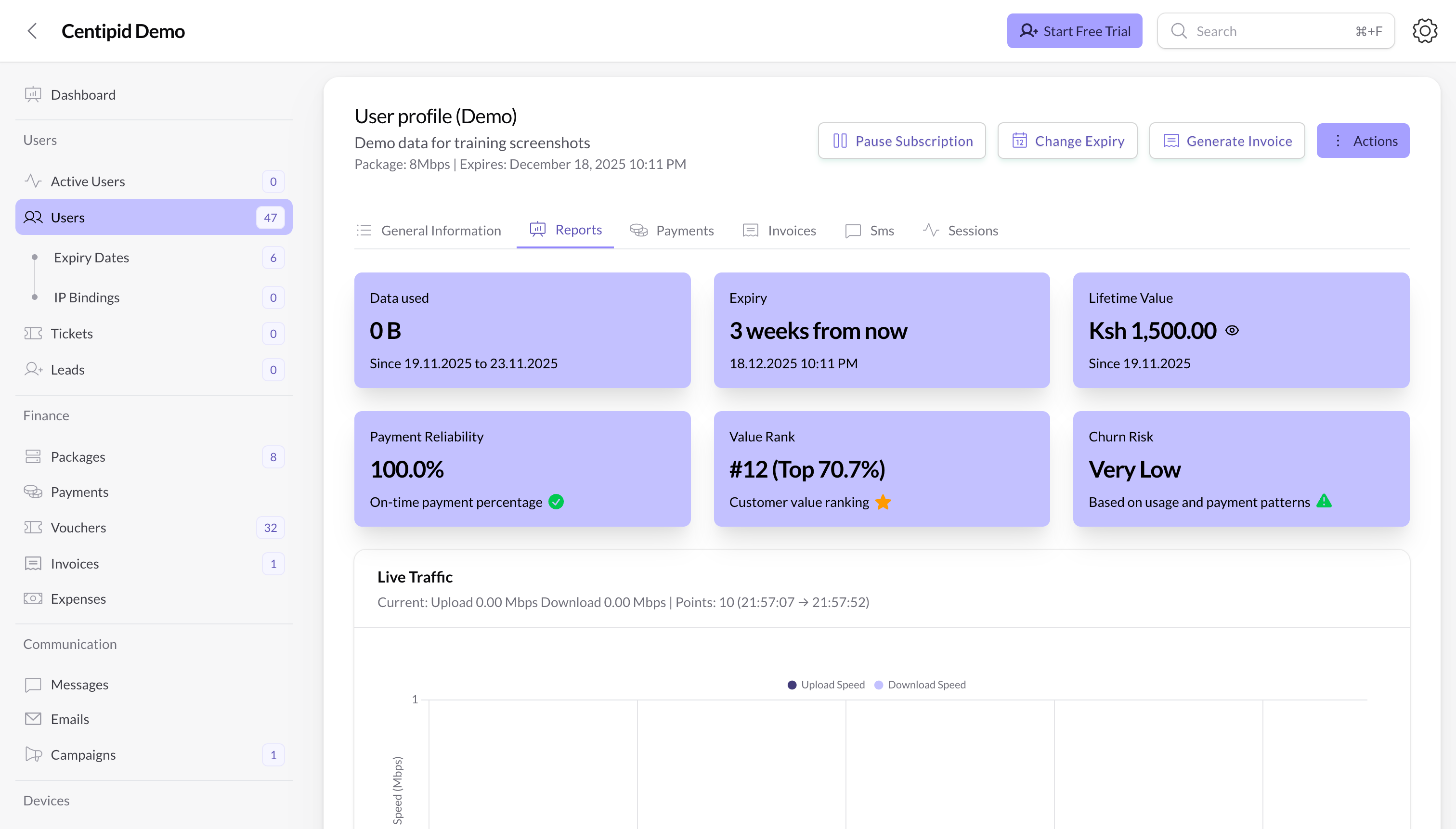
Payments
- Only admins or team members who can access Finance → Payments will see this tab.
- It embeds the same payments table inside the profile so you can record manual payments, verify automatic receipts, or export their history without leaving the page.
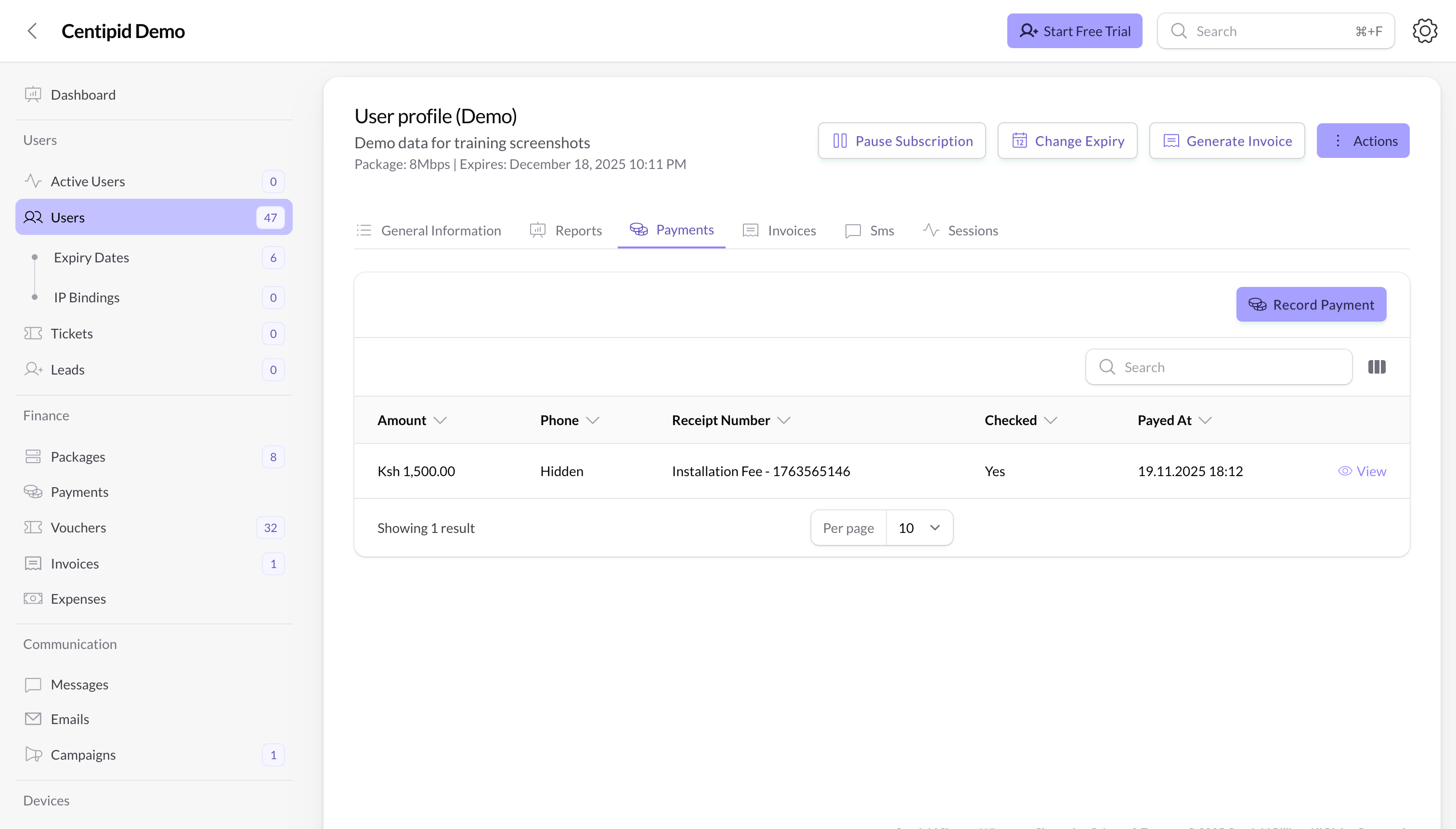
Invoices
- Only shows for PPPoE users when invoices are enabled globally.
- Displays the Invoices widget so you can review past invoices or open them in a new tab.
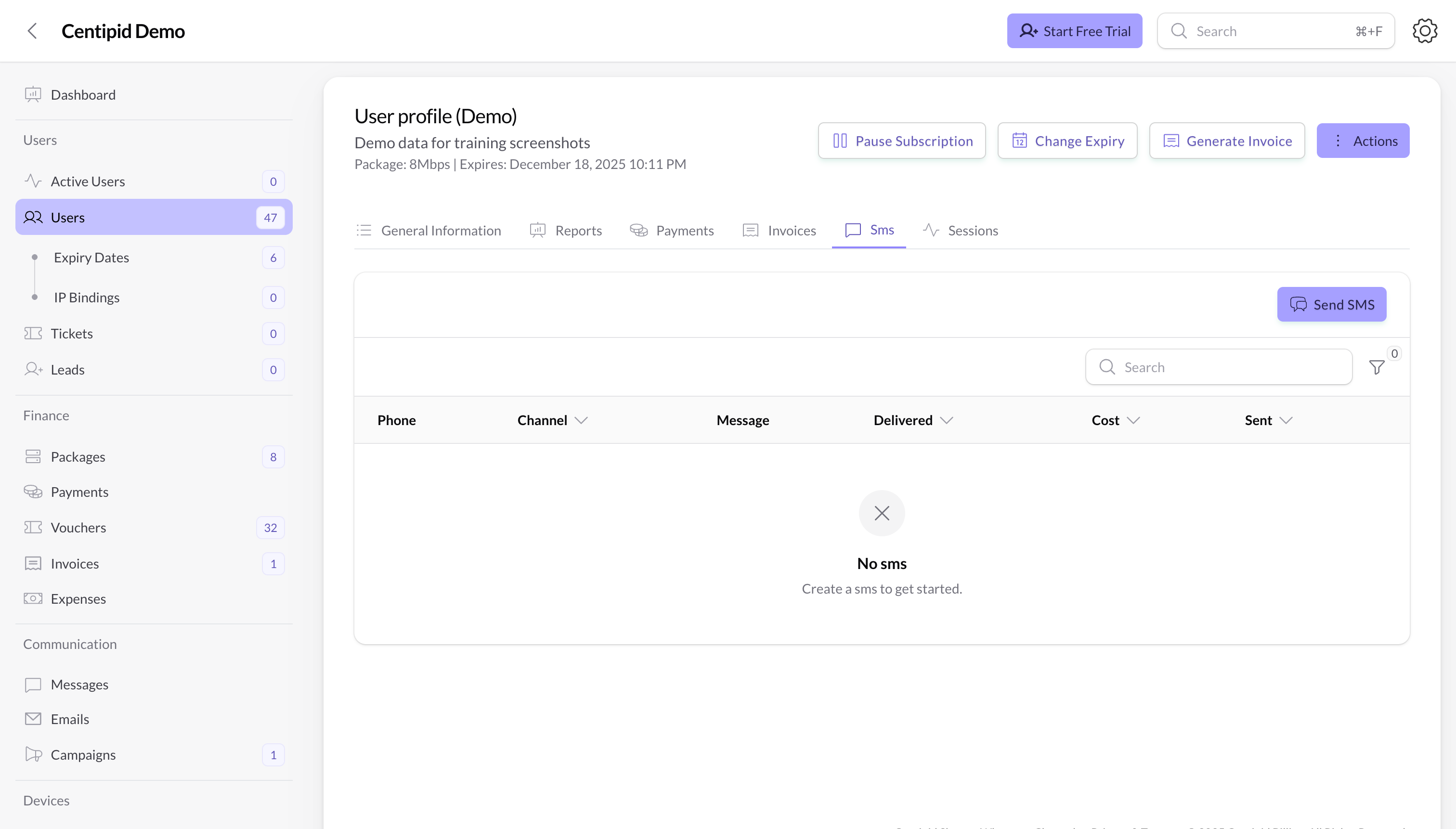
SMS
- Visible to admins or teammates who have SMS access.
- Shows every SMS sent to the subscriber and lets you resend templates or monitor delivery.
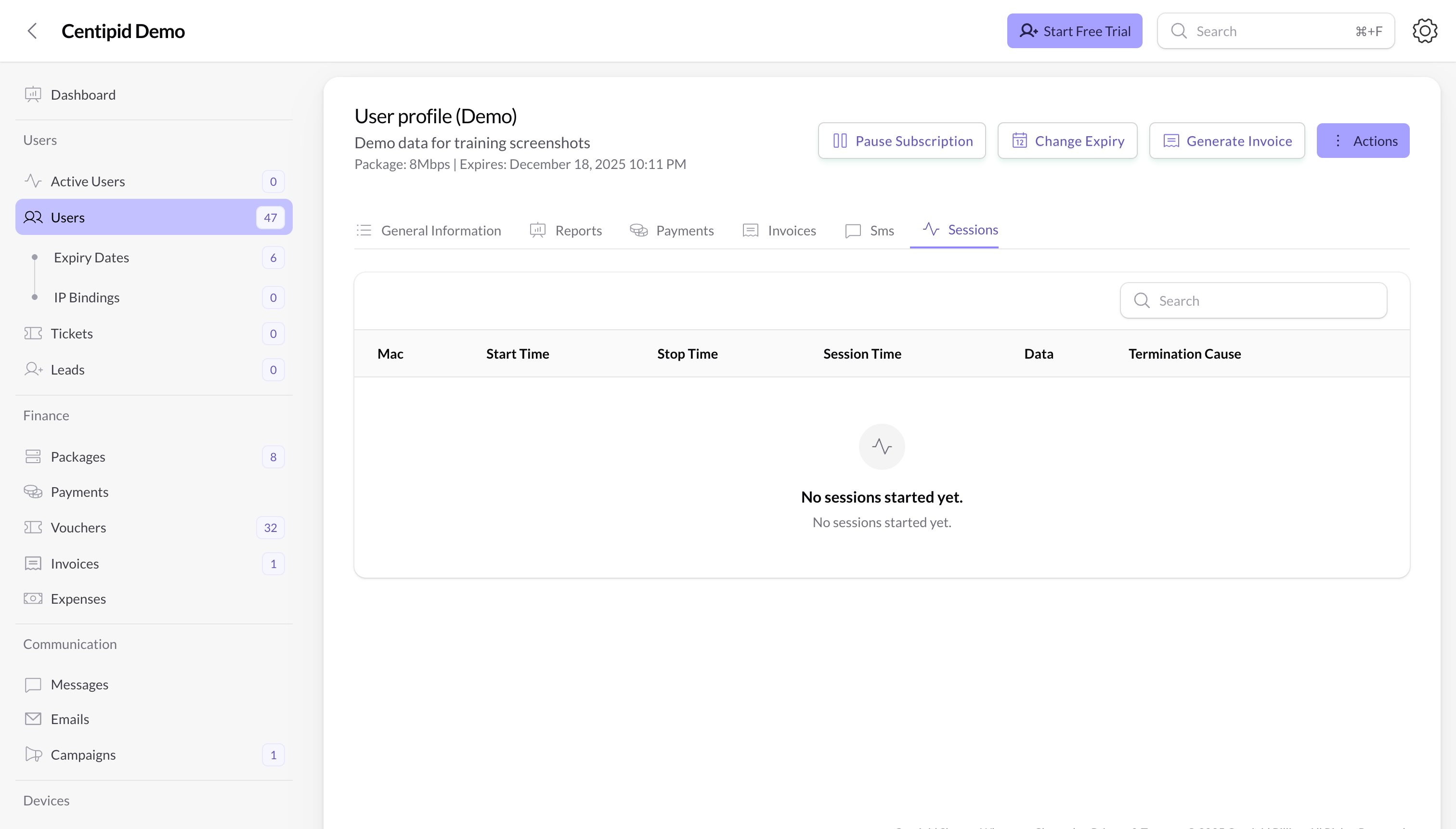
Sessions
- Only admins or staff with access to the Active Users module see this tab.
- Embeds the User Sessions widget so engineers can inspect the customer’s connection history, NAS, and timestamps without leaving the profile.
Header actions
All primary actions live in the top-right buttons. Most of them require admin status or the relevant permission.- Pause/Unpause subscription – temporarily suspend access (useful when a customer asks you to pause their service). You can set an optional “pause until” date and custom SMS message. Unpausing resumes the remaining time.
- Set/Change expiry date – update the manual expiry, package, and (for PPPoE) grace period. Centipid saves the change to the expiry-date record automatically.
- Send voucher – for hotspot users only; generates a one-off voucher and texts it to the user’s phone.
- View invoice – opens the most recent pending/partial invoice when invoices are enabled for PPPoE.
- Generate invoice – creates a fresh invoice with custom amount, description, due date, and notes.
- Edit user – slide-over form for updating profile data. Disabled while the account is paused.
- Send credentials – SMSes the hotspot/PPPoE username and password along with the login link.
- Send payment details – (PPPoE) sends an SMS explaining how to pay, prefilled with the correct paybill/till/bank reference and account number.
- Delete user – permanently removes the subscriber; only admins can perform this action.
Tips
- Confirm the phone number before using any SMS action—Centipid blocks the send if the field is blank.
- When troubleshooting speed complaints, check the Reports tab to see if their Mikrotik rate limit is already throttled to
1k/1k(usually meaning the account is expired or paused). - Use the Sessions tab alongside the Active Users page to confirm whether the user is genuinely online.
- If invoices are enabled, open Payments first to ensure there are no duplicate payments before generating a new invoice.