
Open the page
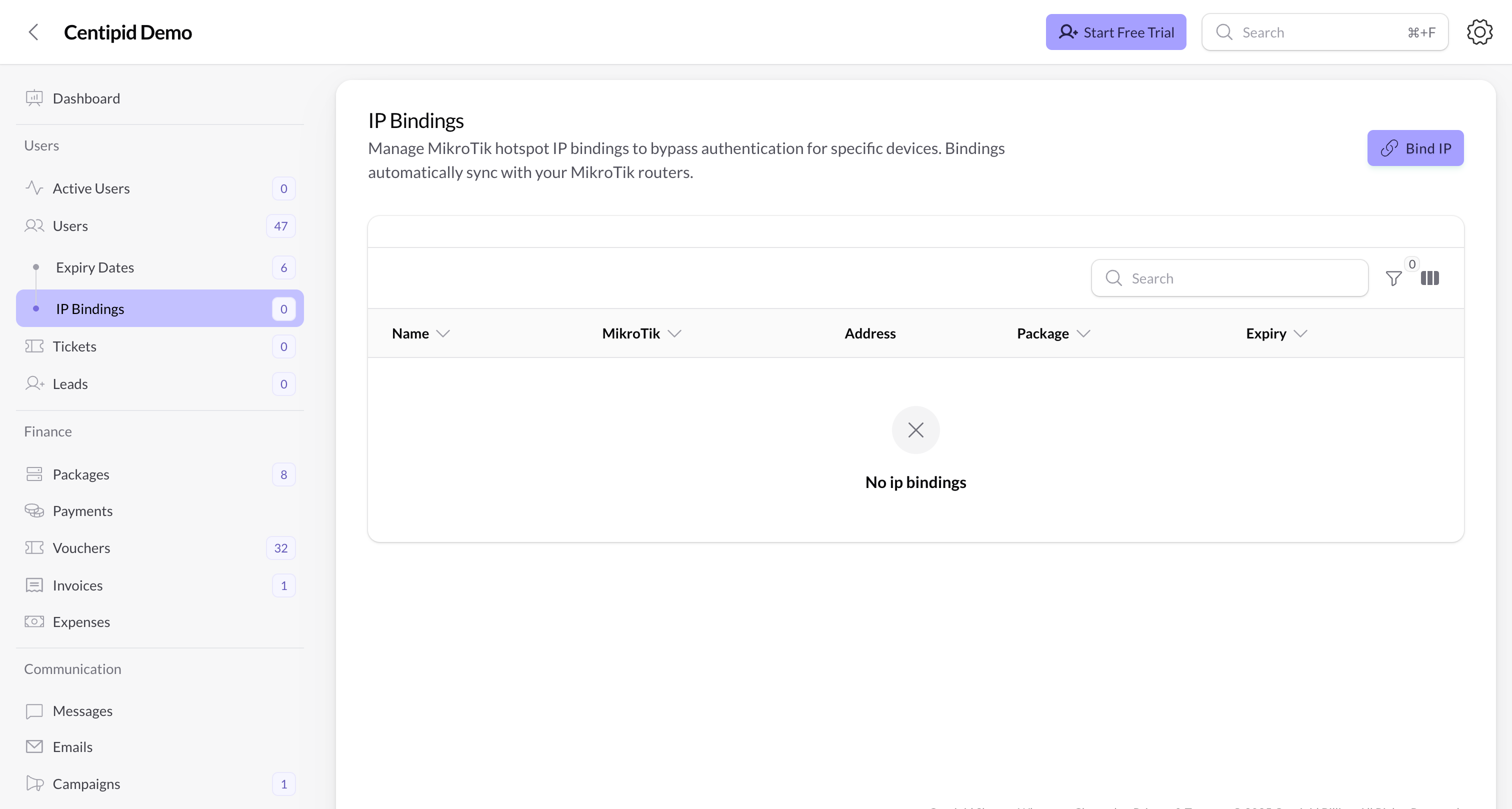
- Go to Users → IP Bindings (visible to admins and support accounts).
- The navigation badge shows how many bindings exist.
- The table lists each binding with its router, package, SMS reminder flag, and expiry status. Use the Mikrotik filter at the top to focus on a single router.
Create a binding
- Click Create IP Binding.
- Select the MikroTik. If your account only has one router, Centipid pre-selects it.
- Choose a DHCP Lease to automatically pull the IP and MAC address of the device you want to bind. You can also type the values manually if the host is not in the DHCP list.
- Give the binding a friendly Name (used on the router and in reports).
- Pick a Hotspot package; Centipid uses the package speeds to build a simple queue so the device respects your plan.
- (Optional) Set Expires At. Centipid will remove the binding and queue at that time.
- Save. The system pushes the configuration to MikroTik, creates any necessary queues/schedulers, and stores the binding in your database.
Table columns & actions
- Name – friendly label for the device.
- MikroTik – router where the binding resides.
- Address / MAC – IP plus MAC (uppercase) so you can copy either value.
- Package – the speed profile tied to the binding.
- SMS – indicates whether reminders are enabled for this binding (if your account uses reminder jobs).
- Expiry – shows Never, Expired, or the time remaining.
- Edit – change the router, package, or expiry. Centipid updates MikroTik and any scheduled jobs.
- Delete – removes the entry from MikroTik first (including the simple queue) and then from Centipid.
- Cleanup expired – dispatches the expiry job immediately for selected bindings that are already past their expiry time.
- Delete – removes several bindings at once, cleaning up router queues as part of the process.
Tips
- Keep names consistent (e.g., Shop-EPSON-Thermal) so field technicians know which device each binding protects.
- When you migrate a binding to a new router, edit the entry instead of recreating it; Centipid removes the old RouterOS objects before provisioning the new ones, preventing duplicates.
- Pair bindings with Vouchers or Packages to upsell guaranteed bandwidth tiers without creating separate routers.