Centipid only allows one active payment gateway at a time. When you select and save a gateway in the Payments tab, it becomes the gateway used for all online payments until you switch to another one.This page explains how to configure M‑Pesa inside the Payments tab of System Settings.
Note: M‑Pesa options only appear if your Centipid country is set to Kenya (KE).
1. Open the Payments tab
- Sign in to your Centipid dashboard.
- Click the gear icon in the top‑right corner to open System Settings.
- Click the Payments tab at the top of the page.
2. Choose the M‑Pesa gateway
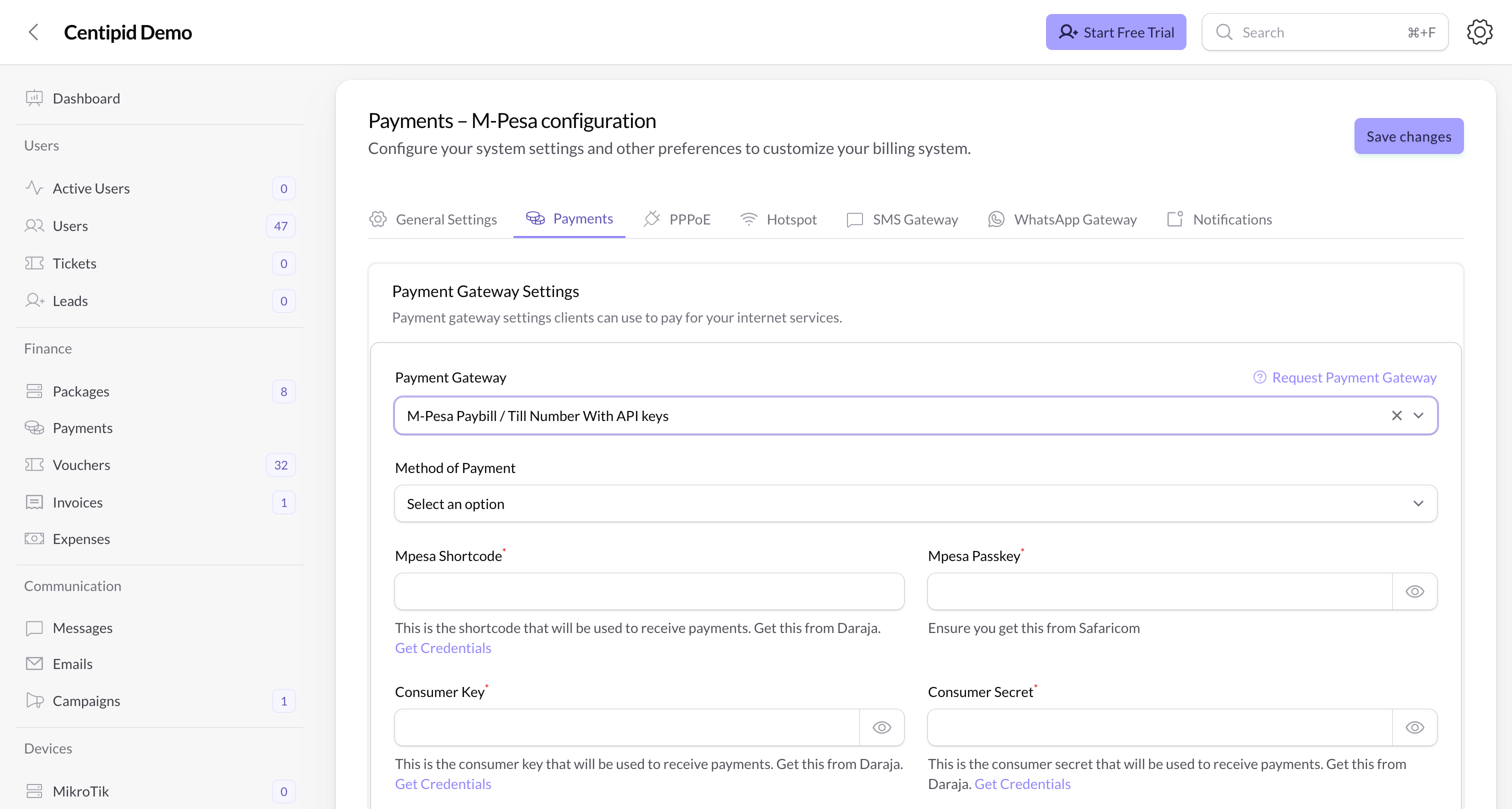
In the Payment Gateway dropdown:- Select SAFARICOM – M‑Pesa Paybill / Till Number With API keys if you want full API integration using Daraja credentials.
- Alternatively, you can select Paybill – Without API keys or Till Number – Without API keys gateways if you only need basic payment instructions and will confirm payments manually.
3. Method of payment (Paybill vs Till Number)
When you choose SAFARICOM as the Payment Gateway, a Method of Payment dropdown appears:- Paybill – customers pay to your Paybill number.
- Till Number – customers pay to a normal Till number.
4. Required M‑Pesa fields
After you choose SAFARICOM and a method of payment, Centipid shows additional fields you must fill in.Paybill / Till Number
Depending on the method you selected:- Paybill – enter your Paybill number.
- Till Number – enter your Till Number (the normal till your customers will pay to).
Daraja API credentials
To allow Centipid to talk directly to M‑Pesa, you need credentials from the Safaricom Daraja portal. Official portal: Safaricom Daraja You will need:- Mpesa Shortcode – the shortcode Daraja uses for your app.
- Mpesa Passkey – the passkey for your Lipa Na M‑Pesa Online Shortcode.
- Consumer Key – your Daraja consumer key.
- Consumer Secret – your Daraja consumer secret.
How to get the API keys (high level)
- Sign in to the Safaricom Daraja portal.
- Create an App if you don’t already have one.
- In your app details:
- Copy the Consumer Key and Consumer Secret.
- Generate or copy the Lipa Na M‑Pesa Online Shortcode.
- After Safaricom approves your app and you go live, they will email you the Lipa Na M‑Pesa Online Passkey – keep this safe and paste it into Centipid when you receive it.
- Note the Shortcode you will use for payments.
- Paste these values into the matching fields in Centipid under System Settings → Payments.
- Keep all these values secret – never share screenshots or send them by chat or email.
- Use the reveal buttons only when you need to check the value while configuring.
5. Testing your M‑Pesa integration
Before you rely on M‑Pesa in production:- Create or pick a small test package (for example a cheap daily bundle).
- From your captive portal, subscribe to that package.
- Confirm that:
- The STK push or payment flow appears on your phone.
- The payment is marked as checked in Centipid.
- The package is activated for the customer.
- The customer is logged in to Mikrotik Hotspot
6. Using M‑Pesa without API keys (Paybill / Till Number)
If you don’t want to use Daraja API keys, you can still accept M‑Pesa payments using the Paybill – Without API keys or Till Number – Without API keys gateways.Paybill – Without API keys
- In the Payment Gateway dropdown, choose Paybill – Without API keys.
- You’ll be asked for your Paybill details – enter the Paybill number you want Centipid to settle funds to.
- Click Save changes when you’re done.
Till Number – Without API keys
- In the Payment Gateway dropdown, choose Till Number – Without API keys.
- You’ll be asked for your Till Number – enter it exactly as provided by Safaricom so Centipid can settle funds to it.
- Click Save changes when you’re done.
7. Bank account payments (Kenya)
If you prefer customers to pay by bank transfer instead of directly through M‑Pesa:- In the Payment Gateway dropdown, choose BANK.
- Enter the bank account that should receive payments.
- Click Save changes.
How payments flow (PPPoE vs Hotspot)
-
PPPoE packages
- Customers are shown the Centipid collection Paybill 4026374 and a unique account number auto generated by the system.
- Payments go to Centipid first; once received, Centipid automatically forwards the funds to your configured Paybill / Till Number / Bank and activates the customer’s PPPoE package.
- You do not need to manually match or confirm these payments.
- When you are not using API keys (Paybill / Till Number / Bank), Centipid charges a 1% transaction cost on PPPoE payments before settling the funds to your gateway.
-
Hotspot packages
- Customers receive an STK push on their phone.
- After they enter their M‑Pesa PIN, the money goes directly to your configured gateway (Paybill, Till Number, or Bank) and Centipid activates their hotspot session.
8. Other gateways and mixed setups
If your ISP also accepts other forms of payment:- You can switch between M‑Pesa, bank, or other gateways such as PawaPay or Paystack (depending on your country).
- Use the Payment Gateway dropdown in System Settings → Payments to choose and configure the one gateway you want to use.
Need help?
For M‑Pesa API or Daraja account issues, email apisupport@safaricom.co.ke.For Centipid configuration questions, contact Centipid support on WhatsApp:
+254742324193.